In short, WordPress is both a blogging tool and a content management system (CMS) based on PHP and MySQL. This tool makes managing content on your website(s) quick, easy, and powerful.
To install Wordpress on your website, follow the instructions below.
1) Go to the hostropics.com Client Area by pressing the login button at the top of any page or by visiting https://www.hostropics.com/panel/clientarea.php and log in:

2) Access cPanel in your account
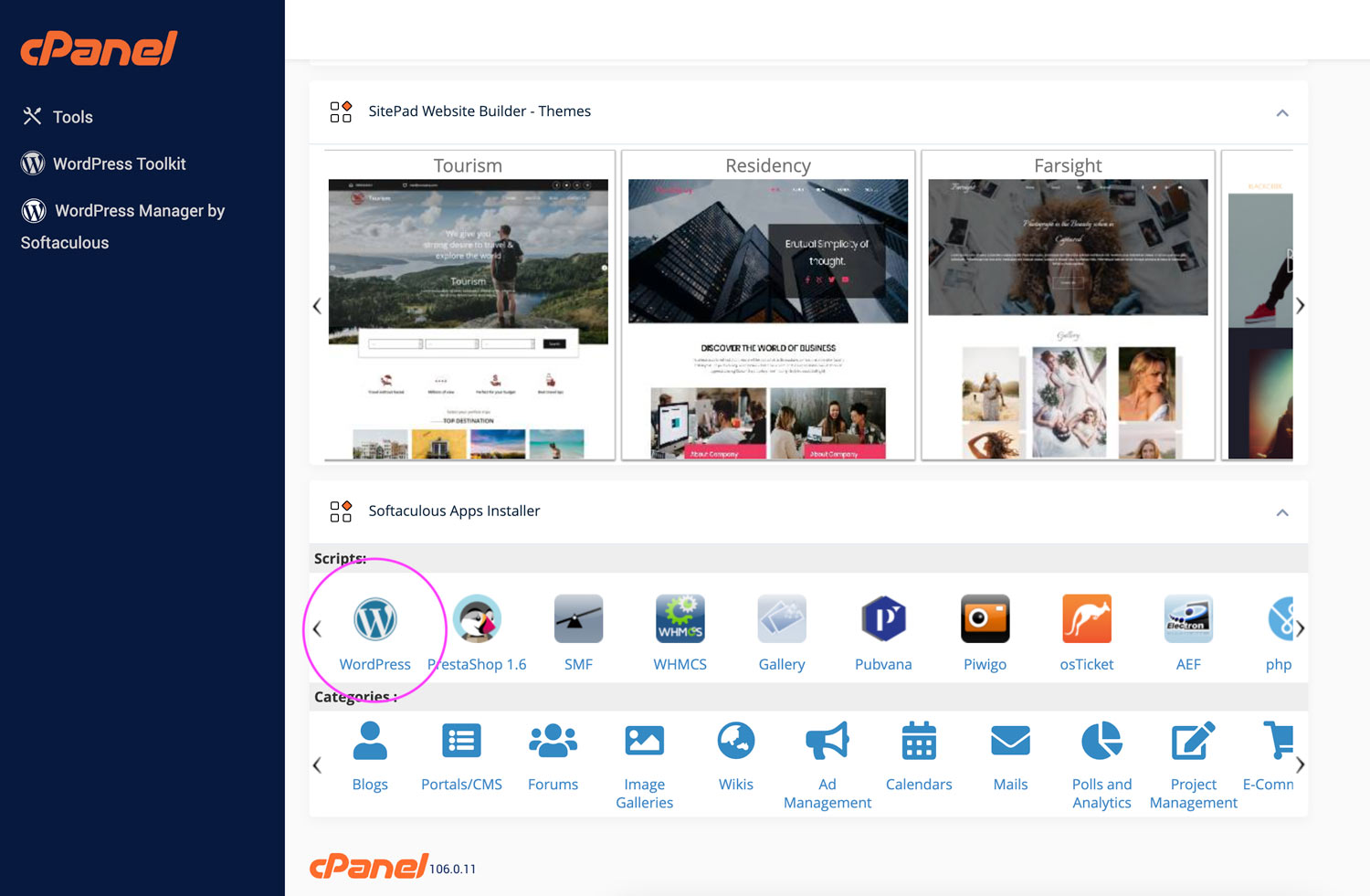
3) Once you're in the cPanel interface, scroll down and click the WordPress link under "Scripts".
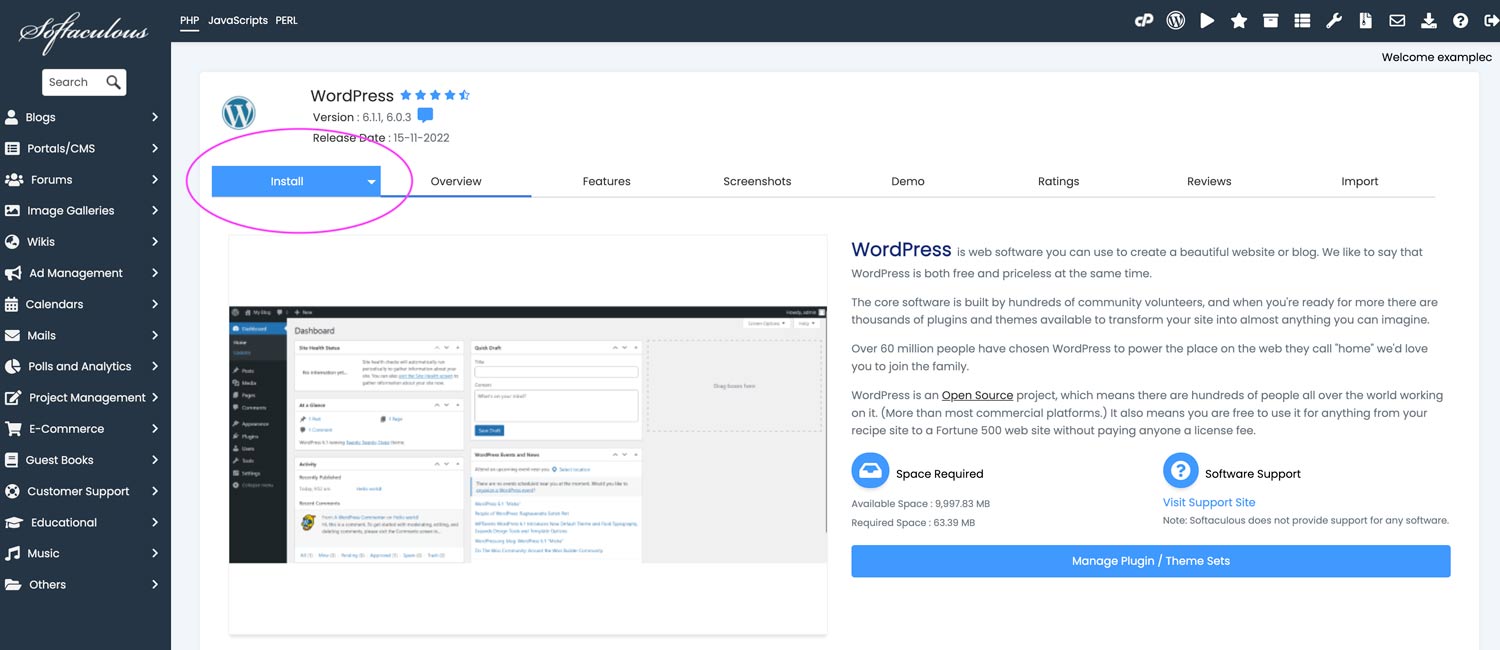
4) Click the Install button at the top of the page.
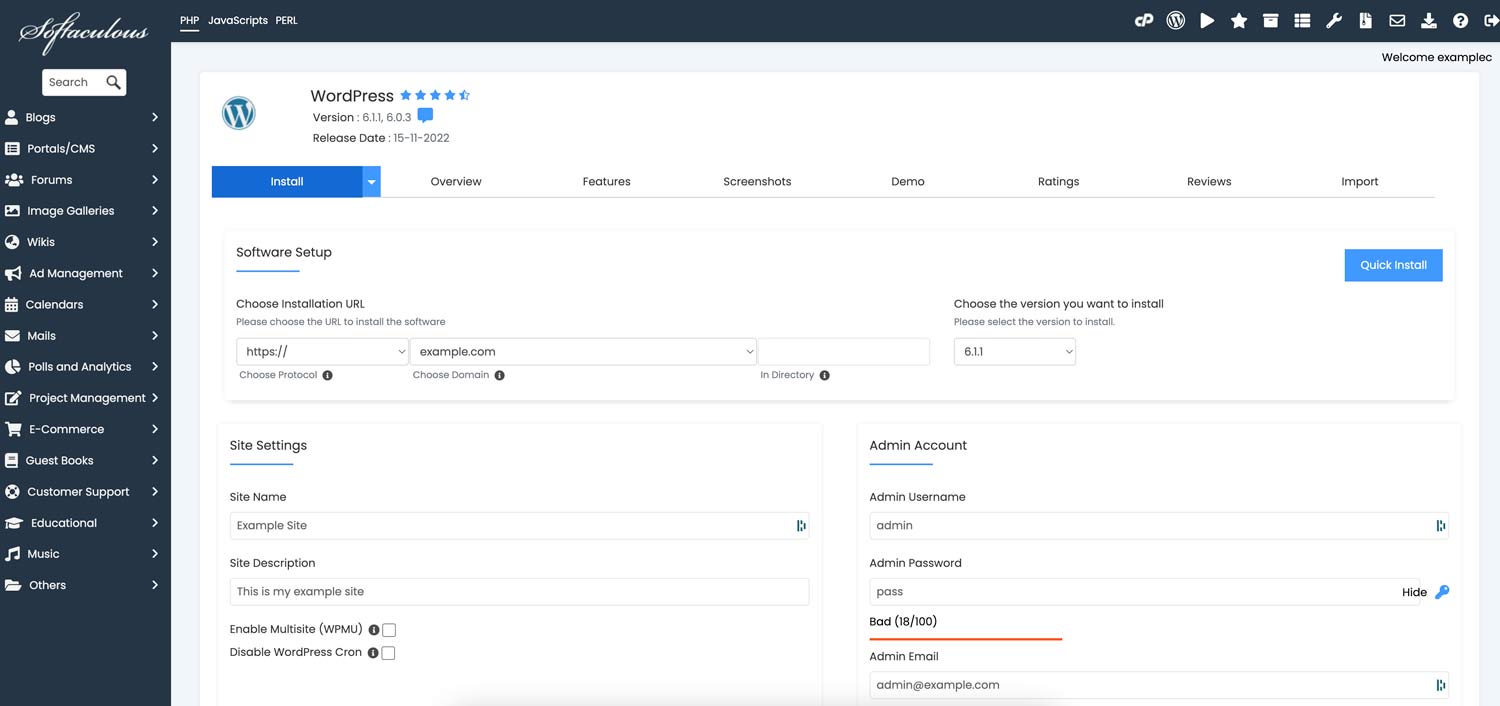
5) Input the required information for your website.
If you are unsure what to enter in a field, leave it set to default.
In our example here, we’ll just change the Site Name, Site Description, Admin Username, Admin Password and Admin Email.
6) Optional: If you wish, you can use one of the preloaded themes. It is always possible to change this later.
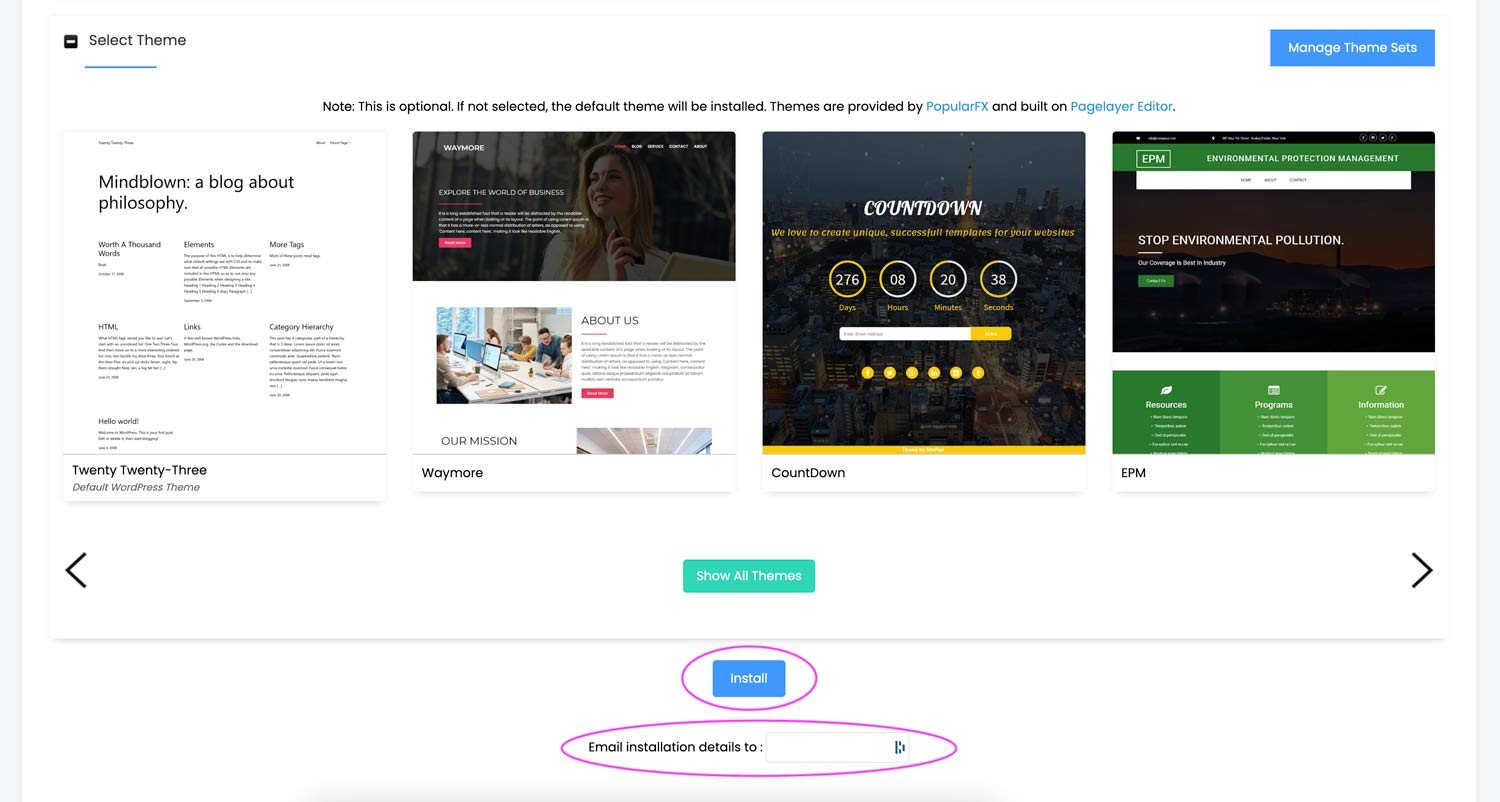
7) After entering your email address, click the "Install" button. You'll receive further instructions for installation in your email.
Congratulations! You've just installed Wordpress.
